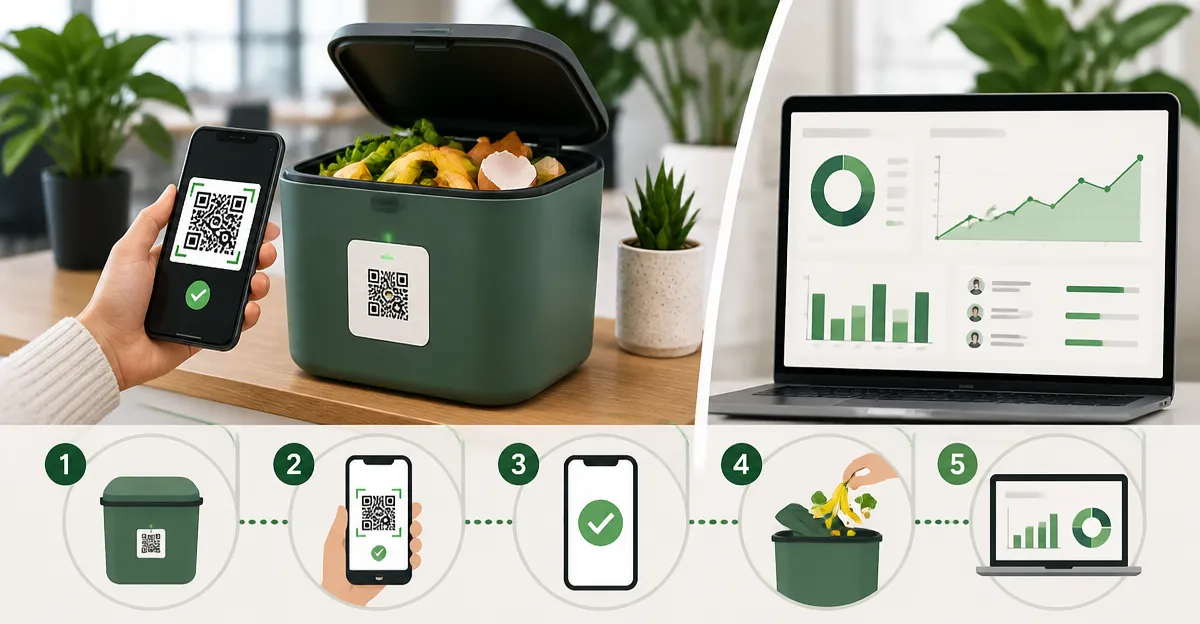
How to Set Up QR Access and Usage Tracking for Shared Countertop Composter Stations — A Step‑by‑Step Guide
Introduction
In modern co‑living environments, shared countertop composters require clear usage protocols and accountability. This guide will teach the reader how to establish a QR‑based access and usage tracking system that simplifies monitoring, reduces waste, and encourages responsible composting. The reader will learn to select appropriate QR label tools, attach them correctly, configure shared digital access, and maintain the system over time. By following these instructions, one can transform a simple compost bin into a smart, traceable resource that benefits both users and property managers.
What You Will Need
- Pre‑printed QR labels suitable for kitchen environments (e.g., ToteScan QR Labels)
- Smartphone or tablet with iOS or Android for app installation
- Internet connection for initial setup and periodic sync
- Basic cleaning supplies for the compost container surface
- Optional: color‑coded QR stickers for visual categorisation (Smart Labels QR Stickers)
Step 1: Evaluate the Composter Station
Begin by inspecting the countertop composter to identify suitable attachment points for QR labels. Choose a flat, dry surface where the label will remain visible and adhesive will not be compromised by moisture. Clean the area with a mild detergent and allow it to dry completely before applying any label. Document the location of the label in a brief note, as this will serve as a reference during the configuration stage.
Step 2: Select an Appropriate QR Label System
For a shared kitchen environment, a reliable QR label system must provide durability, unique identifiers, and a free mobile application. ToteScan QR Labels offer 45 multi‑colored, pre‑printed QR codes that are tear‑ and water‑resistant, making them ideal for kitchen use. Each label costs $11.95 and carries a 4.7‑star rating from over 5,000 reviews, indicating strong user satisfaction. The included free app allows users to assign titles, photos, and descriptions to each label, enabling instant retrieval of compost usage data. An alternative is Smart Labels QR Stickers, which provide AI‑driven photo extraction and colour‑coding for up to 48 stickers at $19.95 with a 4.4‑star rating. The AI feature reduces manual data entry, which can be valuable when multiple users are logging compost additions. Choose the system that best aligns with budget constraints and desired automation level.
Step 3: Install the Mobile Application
Download the companion application for the selected label system from the Apple App Store or Google Play Store. For ToteScan, the app is free and requires an email address for secure data storage; it also supports Alexa voice commands for hands‑free queries. For Smart Labels, the free version permits unlimited scans and image uploads, while an optional Pro Plan at $14.95 per year unlocks PDF and CSV export features. Install the app on a device that will be accessible to all authorized users, such as a shared tablet mounted near the compost station. Sign in with a shared account or create a team account, depending on the platform’s capabilities, to ensure that all users can view and update the compost log.
Step 4: Attach QR Labels to the Composter
Peel the backing from the chosen QR label and press it firmly onto the prepared surface, ensuring full contact without air bubbles. Because the labels are colour‑coded, assign a colour that corresponds to the compost station for quick visual identification; for example, use green for the kitchen composter. Verify that the label scans correctly by opening the mobile app, selecting the "Add New Item" function, and scanning the QR code. If the scan fails, clean the label surface and retry, as residue from cleaning agents can interfere with barcode recognition.
Step 5: Configure Shared Access and Usage Logging
Within the app, create a dedicated container entry named "Countertop Composter" and attach the scanned QR label to this entry. Add fields for "Date", "User", "Material Added", and optional photos of the material. Encourage each user to log their compost contribution by scanning the label before adding waste. The app will timestamp each entry, allowing administrators to generate usage reports that highlight peak usage times and material types. For teams requiring export capabilities, the Smart Labels Pro Plan provides CSV downloads that can be imported into spreadsheet software for deeper analysis.
Step 6: Train Users on Proper Scanning and Logging
Conduct a brief training session with all participants to demonstrate how to scan the QR label, select the appropriate material category, and optionally attach a photo. Emphasise the importance of accurate logging to maintain data integrity. Provide a printed quick‑reference guide near the composter that outlines the scanning steps and includes the QR label image for visual reinforcement. Encourage users to report any scanning difficulties promptly, so that corrective actions can be taken before data gaps develop.
Step 7: Implement Monitoring and Maintenance Procedures
Schedule a weekly review of the compost log to verify that entries are being recorded correctly and that the QR label remains adhered. If the label shows signs of wear, replace it with a spare from the original pack; both ToteScan and Smart Labels include extra labels for such scenarios. Use the app’s analytics to identify patterns, such as over‑filling or under‑use, and adjust composting guidelines accordingly. Periodically back up the data to a secure cloud storage location, especially if the organization relies on the information for sustainability reporting.
Tips & Pro Tips
- Place the QR label at eye level on the composter to minimise scanning errors caused by awkward angles.
- Standardise the naming convention for materials (e.g., "Fruit Scraps", "Vegetable Peels") to enable consistent reporting.
- Utilise the Alexa integration available with ToteScan to query the current contents of the composter without touching the device.
- When using colour‑coded labels, create a legend that maps each colour to a specific waste stream, enhancing visual organisation.
- Consider adding a QR‑enabled QR code that links to the composting guidelines PDF, providing instant access to best practices.
Troubleshooting
Problem: The QR code does not scan reliably.
Solution: Ensure the label surface is clean and free of moisture. Replace the label if it has become warped or torn. Verify that the smartphone camera lens is free of smudges.
Problem: Users report missing entries in the log.
Solution: Confirm that each user is logged into the shared app account before scanning. Enable push notifications to remind users to complete the entry after scanning.
Problem: Data export fails in the free version of the app.
Solution: Upgrade to the Pro Plan for Smart Labels, which provides reliable CSV and PDF export functionality, or manually copy entries into a spreadsheet.
Conclusion
By following the steps outlined in this guide, one can establish a robust QR‑based access and usage tracking system for shared countertop composters. The combination of durable QR labels, a free mobile application, and clear user training creates a transparent environment that promotes responsible composting. Continuous monitoring and periodic maintenance ensure that the system remains reliable and that data remains accurate for sustainability reporting. Implementing this smart solution not only simplifies daily operations but also demonstrates a commitment to environmentally conscious practices.
Products Mentioned in This Guide
Frequently Asked Questions
How do I attach QR labels to a countertop compost bin without damaging it?
Clean the bin surface, peel the adhesive backing, and firmly press the label onto a flat, dry area; avoid high‑heat zones to ensure longevity.
Which mobile app is recommended for scanning and tracking compost usage?
Use a QR‑code inventory app such as QR Inventory or a dedicated compost‑tracking app that logs scans to a shared cloud spreadsheet.
Can multiple users share the same QR code, or should each person have a unique code?
Assign individual QR codes to each user for accountability, but you can also use a single shared code combined with a sign‑in sheet for simpler setups.
How often should the QR tracking data be synced with the central system?
Sync the data daily or after each composting session to keep usage logs current and to identify any irregularities promptly.
What steps are needed to secure internet access for the QR tracking system?
Connect the device to a stable Wi‑Fi network, ensure the app has permission to use data, and set up automatic backups to a secure cloud service.