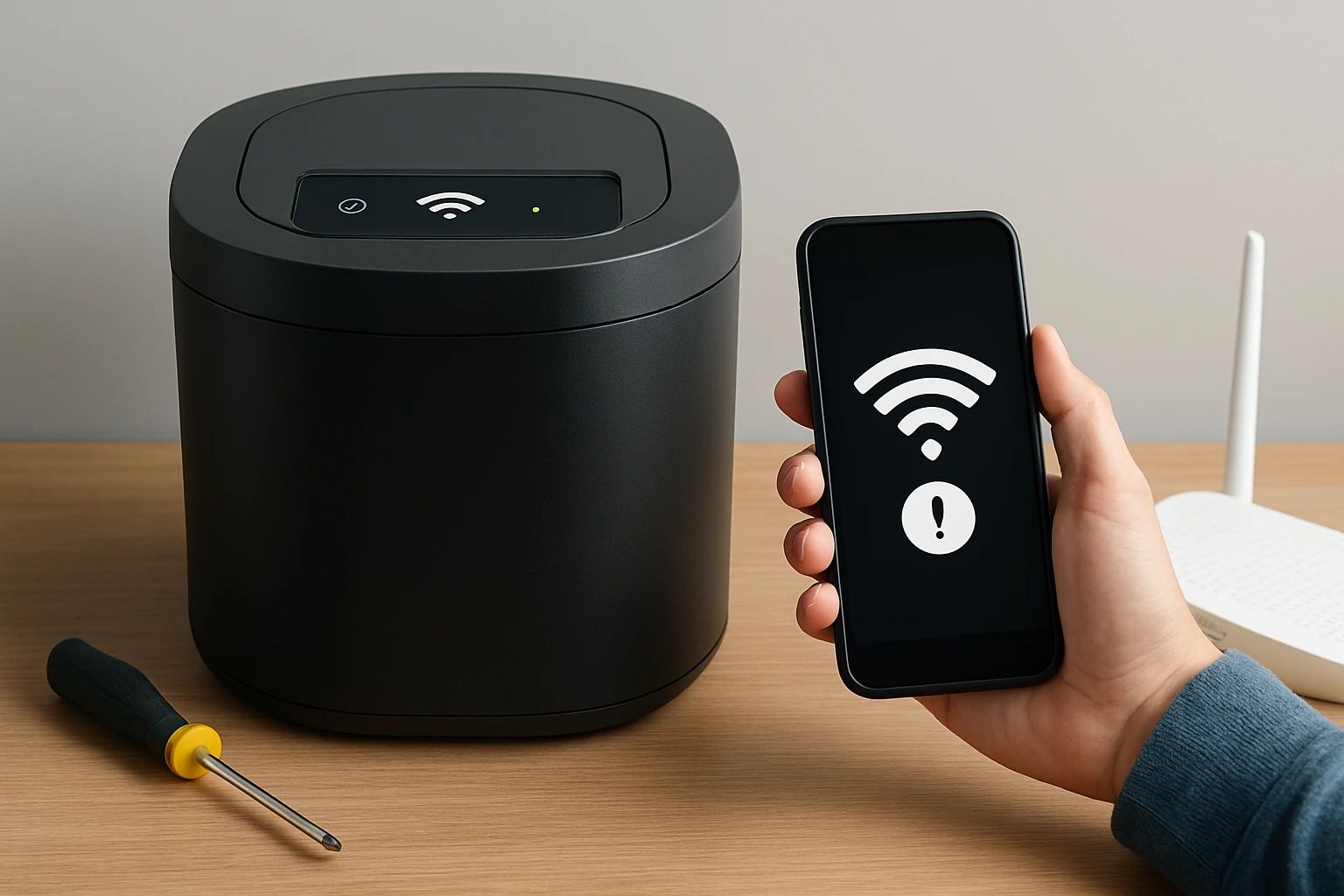
How to Fix Smart Composter Wi‑Fi Not Connecting: Step‑by‑Step Troubleshooting & Quick Fixes
Introduction
In this guide the reader will learn how to identify the root causes of Wi‑Fi connectivity failures in smart composters and how to apply practical solutions that restore reliable operation. Understanding the network requirements, device firmware, and environmental factors will empower the user to maintain a seamless composting experience. The information presented is valuable because it reduces downtime, prevents waste accumulation, and protects the investment in advanced kitchen appliances.
Smart composters rely on constant communication with mobile applications to provide real‑time monitoring, schedule cycles, and generate composting statistics. When the Wi‑Fi connection drops, users lose visibility into the process and may encounter errors that halt the machine. By following the systematic approach outlined below the reader will be able to resolve most connectivity issues without requiring professional service.
This article also integrates recommended products that can serve as reliable alternatives or complementary tools during the troubleshooting process. The recommendations are based on real customer feedback, price, and performance metrics.
What You’ll Need
- Smartphone or tablet with the companion app installed
- Access to the home Wi‑Fi router settings
- Ethernet cable (optional for temporary wired testing)
- Phillips screwdriver (for accessing internal modules if warranty permits)
- One of the recommended composters for backup or replacement: Airthereal Revive Electric Kitchen Composter or Reencle Gravity Electric Kitchen Composter
Step 1: Verify Wi‑Fi Network Compatibility
The first action is to confirm that the home network meets the technical specifications required by the smart composter. Most devices operate on a 2.4 GHz band and support WPA2‑Personal security. If the router is configured for a 5 GHz‑only network, the composter will be unable to detect the signal.
Log into the router administration page and ensure that a 2.4 GHz SSID is active. If the network uses a mixed‑mode configuration, note the exact SSID name and password. Record these details for later steps.
Should the network lack a 2.4 GHz band, consider enabling a guest network that operates on that frequency. This approach isolates the composter from high‑traffic devices while preserving connectivity.
If the user prefers a device that does not rely on Wi‑Fi, the Airthereal Revive Electric Kitchen Composter offers a fully offline solution with visual glass cover and one‑button operation. It is priced at $189.98 and holds a rating of 4.5 out of 5 stars based on 163 reviews, providing a dependable alternative for households with limited Wi‑Fi infrastructure.
Step 2: Restart the Router and the Composter
Power cycling both the router and the smart composter often resolves transient communication glitches. Turn off the router, wait thirty seconds, and then power it back on. Allow the router to complete its boot sequence, which may take up to two minutes.
Next, locate the power button on the composter and press it to shut down the unit. After a brief pause of ten seconds, press the button again to restart the device. Observe the status LED; most models flash blue when attempting to connect.
If the composter fails to reconnect after the restart, proceed to the next step. Frequent power interruptions may indicate an unstable electrical supply, which can be mitigated by using a surge protector.
Step 3: Update Firmware and Companion App
Outdated firmware can cause compatibility issues with newer router firmware or security protocols. Open the companion app on the smartphone and navigate to the device settings menu. Look for a firmware update prompt and follow the on‑screen instructions to download and install the latest version.
Simultaneously verify that the mobile app itself is up to date by checking the App Store or Google Play Store. An updated app ensures that the communication protocol aligns with the device firmware.
In cases where the firmware update fails due to lack of connectivity, use a temporary wired connection if the composter supports Ethernet via an adapter. This method bypasses Wi‑Fi and allows the update to complete.
Step 4: Check Signal Strength and Interference
Weak signal strength or electromagnetic interference can prevent a stable connection. Use a Wi‑Fi analyzer app on the smartphone to measure the signal strength at the location of the composter. Aim for a signal level of at least –70 dBm for reliable operation.
Physical obstacles such as metal cabinets, microwaves, or dense walls can attenuate the signal. Relocate the composter to a more open area, preferably within two meters of the router, and re‑run the connection test.
If the user wishes to maintain a compact kitchen layout while improving signal quality, the Reencle Gravity Electric Kitchen Composter includes a built‑in weight and time tracking system that can be monitored via a low‑bandwidth Bluetooth link, reducing reliance on Wi‑Fi. Priced at $579.00 with a rating of 4.4 out of 5 stars from 60 reviews, it offers a quiet, odor‑free experience and serves as a robust backup option.
Step 5: Reset Network Settings on the Composter
Most smart composters provide a network reset function accessible through the companion app or a physical button sequence. Consult the user manual for the exact reset procedure; typically it involves holding the Wi‑Fi icon button for ten seconds until the LED blinks rapidly.
After the reset, the device will enter pairing mode. Return to the app, select the composter from the list of available devices, and enter the Wi‑Fi credentials previously recorded. Confirm that the device acknowledges a successful connection.
Document the new network credentials in a secure location to avoid future entry errors.
Step 6: Verify Router DHCP Settings
Dynamic Host Configuration Protocol (DHCP) assigns IP addresses to connected devices. If the router’s DHCP pool is exhausted, the composter may be denied an address. Access the router’s DHCP settings and ensure that the address pool contains sufficient free slots.
Alternatively, assign a static IP address to the composter within the router’s reservation list. This guarantees that the device always receives the same IP, simplifying future troubleshooting.
Record the static IP address and update the companion app configuration if required.
Step 7: Examine Firewall and MAC Filtering Rules
Some routers employ firewall rules or MAC address filtering that block unknown devices. Locate the MAC address printed on the composter’s label and add it to the router’s whitelist.
If the router uses a strict firewall policy, create an exception for the composter’s IP address and the ports used by the companion app (typically TCP ports 443 and 8883). This step ensures uninterrupted data flow between the device and the cloud service.
After adjusting the settings, restart the composter and monitor the connection status.
Step 8: Test with a Mobile Hotspot
To isolate the issue, connect the composter to a mobile hotspot created on a smartphone. Enable the hotspot, note the SSID and password, and repeat the network pairing process.
If the composter connects successfully to the hotspot, the problem resides within the home Wi‑Fi environment rather than the device itself. In this scenario, consider upgrading the router firmware or consulting the ISP for assistance.
Conversely, if the composter still fails to connect, the hardware Wi‑Fi module may be defective, warranting replacement or warranty service.
Step 9: Inspect Physical Wi‑Fi Antenna (If Applicable)
Some advanced composters feature an external antenna that can become loose over time. If the warranty permits, power off the unit and gently tighten the antenna connector using a small screwdriver.
Do not apply excessive force, as the antenna assembly is delicate. After securing the antenna, power the device back on and repeat the connection attempt.
For users seeking a device without an internal antenna, the Airthereal Revive Electric Kitchen Composter employs a transparent visual cover and does not rely on wireless connectivity, eliminating antenna‑related concerns.
Step 10: Perform a Factory Reset
If all previous steps fail, a factory reset may restore the device to its original state. Locate the reset pinhole on the back panel, insert a paperclip, and hold for fifteen seconds until the LED cycles through red, amber, and green.
After the reset, the composter will erase all stored settings, requiring re‑configuration from scratch. Follow the initial setup guide provided in the manual, paying close attention to network entry.
Factory resets are typically covered by the manufacturer’s warranty; however, verify that no personal data is lost before proceeding.
Step 11: Contact Customer Support
When troubleshooting does not resolve the connectivity issue, reach out to the manufacturer’s support team. Provide them with the serial number, firmware version, and a detailed description of the steps already taken.
Most companies offer live chat, email, or phone assistance. If the device is still under the three‑year warranty, the support team may arrange a replacement unit at no additional cost.
Maintain a record of the support ticket number for future reference.
Tips & Pro Tips
- Keep the composter firmware updated on a regular schedule to avoid compatibility gaps.
- Place the device away from large metal appliances to minimize signal interference.
- Use a surge protector with an automatic voltage regulator to protect the composter from power spikes.
- Document the Wi‑Fi credentials in a password manager to prevent entry errors.
- If Wi‑Fi reliability remains an issue, consider using the Reencle Gravity Electric Kitchen Composter as it offers Bluetooth monitoring that bypasses Wi‑Fi entirely.
Troubleshooting Common Problems
Device Shows “Connecting” Indefinitely
Check that the Wi‑Fi password entered matches the case‑sensitive characters exactly. Incorrect passwords cause the device to remain in a connecting loop.
Frequent Disconnections
Inspect the router for firmware updates and enable DHCP lease renewal every 24 hours to prevent IP conflicts.
LED Remains Red After Reset
This indicates a hardware fault in the Wi‑Fi module. Contact the manufacturer for warranty service.
Conclusion
By following the systematic steps presented in this guide the reader will be equipped to diagnose and resolve Wi‑Fi connectivity problems in smart composters efficiently. Maintaining up‑to‑date firmware, ensuring proper network configuration, and minimizing environmental interference are key practices that sustain reliable operation. Should the device prove irreparable, the recommended alternatives provide robust offline or Bluetooth‑enabled composting solutions, ensuring that the user’s commitment to sustainable waste management continues without interruption.
Products Mentioned in This Guide
Frequently Asked Questions
Why won't my smart composter connect to Wi‑Fi?
Common causes include incorrect network settings, outdated firmware, weak signal, or incompatible router settings.
How can I reset the Wi‑Fi settings on my smart composter?
Press and hold the reset button for 10 seconds until the LED blinks, then follow the app’s setup wizard to re‑enter your network credentials.
Do I need a 2.4 GHz network for the composter?
Yes, most smart composters only support 2.4 GHz Wi‑Fi; 5 GHz networks will prevent a connection.
What router settings might block the composter’s connection?
Disable AP isolation, ensure DHCP is enabled, and whitelist the device if MAC filtering is active.
Can a firmware update fix Wi‑Fi connectivity issues?
Updating to the latest firmware often resolves bugs and improves network compatibility, so check the app for updates regularly.